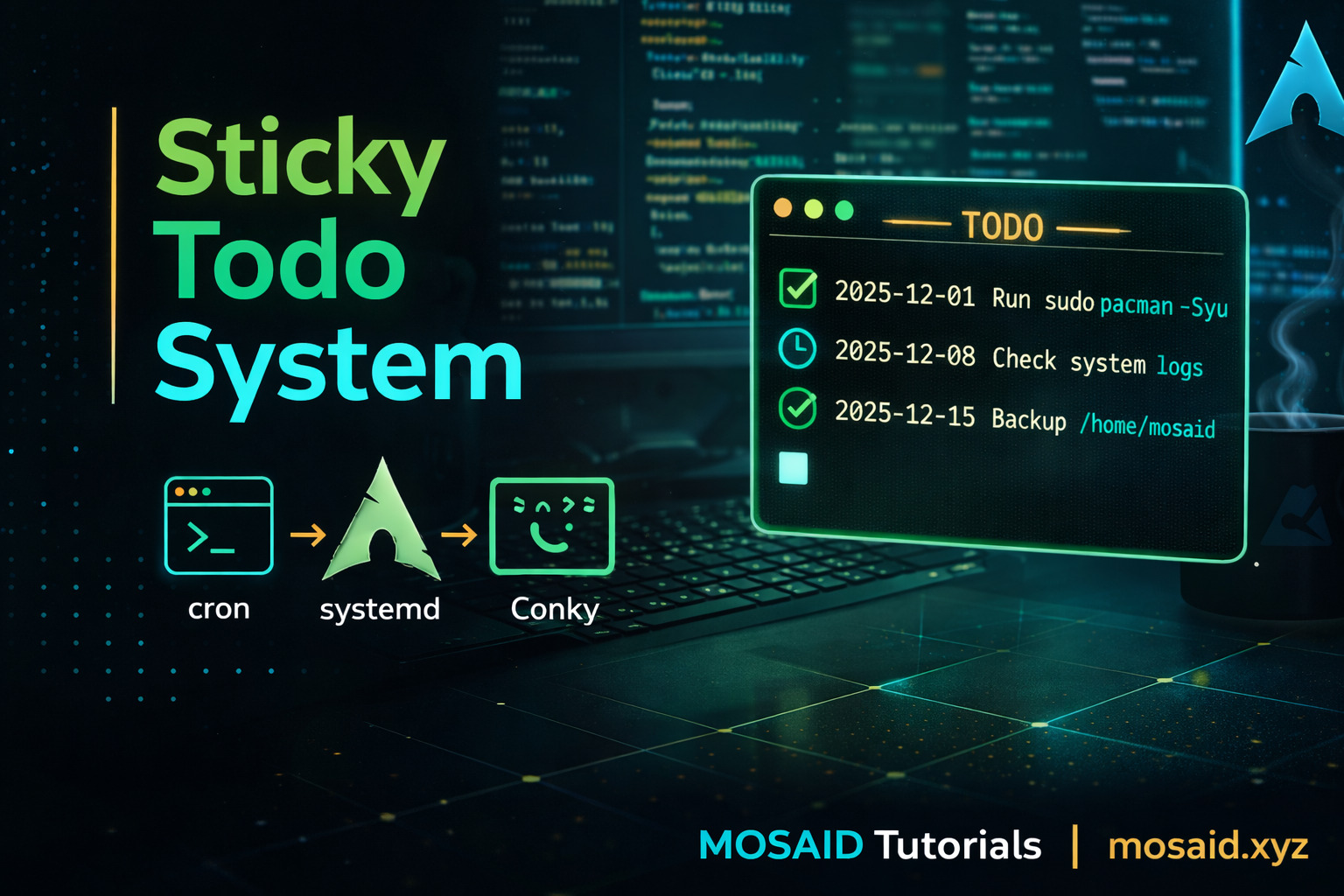
From Terminal to Desktop: Sticky Todo Reminders with Cron, systemd & Conky
In the previous tutorial, I built a minimal terminal-based reminder system using cron and a simple .todo file.
Now, let’s take it further.
In this guide, I’ll turn that idea into a desktop-integrated reminder system using:
•Cron: to generate reminders
•systemd (user): to monitor tasks
•Conky: to display sticky notes on your desktop
This creates a lightweight, always-visible reminder system—without relying on heavy applications.
💡 Architecture Overview
The system works like this:
•Cron: writes reminders to ~/.todo
•systemd user service: checks if tasks exist
•Conky: displays them as sticky notes
Everything stays simple, modular, and hackable.
📁 Step 1: Base Todo System (Recap)
Create the file:
touch ~/.todo
Add a weekly cron job:
crontab -e
0 9 * * 1 echo "$(date '+%F %R') - Run sudo pacman -Syu" >> /home/mosaid/.todo
⚙️ Step 2: Create a systemd User Service
We now create a service that checks if the todo file has content.
Create the file:
mkdir -p ~/.config/systemd/user
vim ~/.config/systemd/user/todo-check.service
Content:
[Unit]
Description=Check TODO file and trigger display

[Service]
Type=oneshot
ExecStart=/usr/bin/bash -c '[ -s /home/mosaid/.todo ]'
This simply checks if the file is non-empty.
⏱️ Step 3: Add a systemd Timer
Create a timer that runs every few minutes:
vim ~/.config/systemd/user/todo-check.timer
[Unit]
Description=Run TODO check every 5 minutes

[Timer]
OnBootSec=1min
OnUnitActiveSec=5min

[Install]
WantedBy=timers.target
Enable it:
systemctl --user daemon-reexec
systemctl --user enable --now todo-check.timer
🖥️ Step 4: Conky Sticky Notes
This is where things become visual.
Create a Conky config:
mkdir -p ~/.config/conky
vim ~/.config/conky/todo.conf
conky.config = {
    alignment = 'top_right',
    gap_x = 20,
    gap_y = 50,
    background = true,
    double_buffer = true,
    own_window = true,
    own_window_type = 'desktop',
    own_window_transparent = true,
    use_xft = true,
    font = 'DejaVu Sans Mono:size=10',
    update_interval = 5,
};

conky.text = [[
${color cyan}---- TODO ----${color}
${execi 5 tail -n 10 /home/mosaid/.todo}
]];
Run it:
conky -c ~/.config/conky/todo.conf &
You now have a live sticky todo list on your desktop.
✨ Step 5: Improve Visibility
Add colors and formatting:
${color green}${time %Y-%m-%d}${color}
Or highlight updates:
${execi 5 grep --color=always pacman /home/mosaid/.todo}
🧠 Optional: Auto-Hide When Empty
You can extend the systemd service to kill Conky if no tasks exist:
ExecStart=/usr/bin/bash -c '[ -s ~/.todo ] || pkill conky'
And restart it when tasks appear.
🚀 Extensions
•Multiple todo files: work, personal, system
•Git sync: share reminders across machines
•Notifications: integrate with notify-send
•Conky themes: match your desktop style
⚖️ Why This Setup is Powerful
•Persistent: visible on desktop at all times
•Lightweight: near-zero resource usage
•Modular: each component is independent
•Fully controllable: no black boxes
This is the kind of system that scales with your needs.
🏁 Conclusion
You’ve now transformed a simple terminal trick into a fully integrated desktop reminder system.
It respects the Unix philosophy while giving you a modern workflow.
Small tools. Big control.
Recent Articles







Most Viewed Articles





The Ultimate Vim Setup (My 2024 vimrc ) : Essential Commands, Configurations, and Plugin Tips
Views: 1.40K
12 Apr 2024

Complete Tutorial: Creating Categories and Subcategories Using Pages in Pelican
Views: 1.09K
24 Jun 2025
Leave a comment