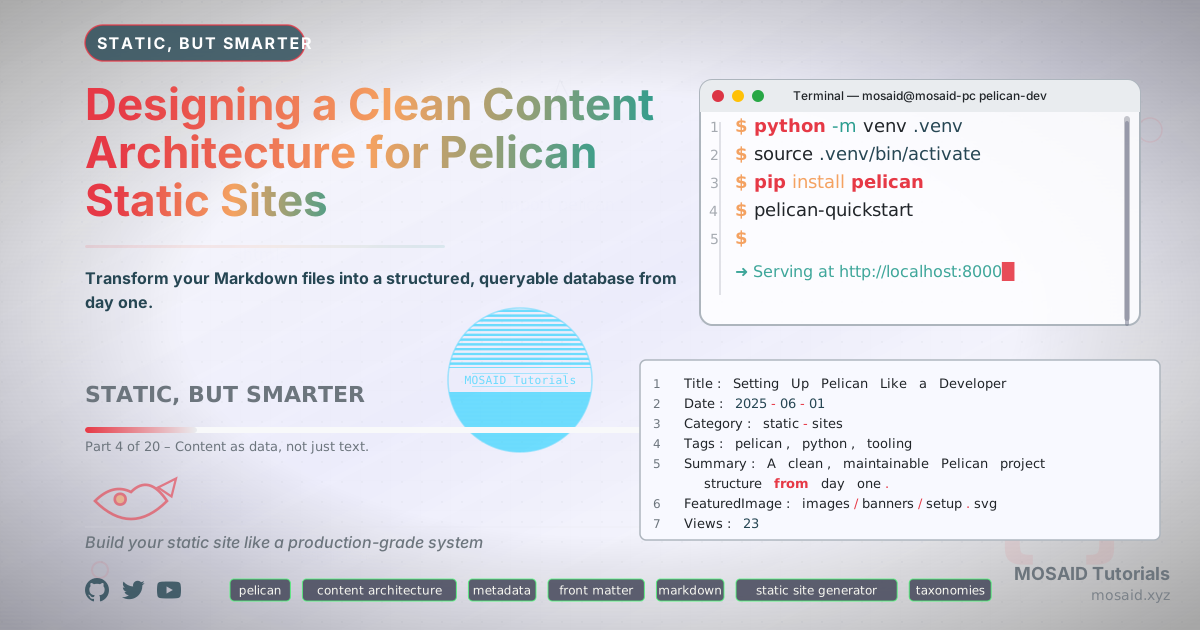
Designing a Clean Content Architecture for Pelican Static Sites
If you’ve only ever used a static site generator to dump Markdown into HTML, you’re leaving its most powerful capability on the table. In this series we treat content as structured data — and that starts with a clean, queryable architecture.
Content Is Data
Every .md file in a Pelican project is a record. It carries a unique
identifier (the slug), a set of typed fields (metadata), and a body (the article
content). When you adopt this mindset, you stop thinking about “files” and start
thinking about a static database that can be filtered, sorted, and indexed at
build time — no plugins required.
We’re going to define a strict vocabulary for that database. Once it’s in place, every “smart” feature we add later — search indexes, related posts, filtered category pages — will simply be a Jinja2 query over well‑structured records.
File Naming Convention
Machine‑readable naming is mandatory. Use the
ISO date prefix followed by a readable slug:
YYYY-MM-DD-slug.md.
•Predictable ordering: lexical sort equals chronological sort.
•Unique slugs: date + title guarantees no accidental collision.
•Human scannable: `ls content/articles/` shows a timeline at a glance.
2025-06-01-setting-up-pelican.md
2025-06-03-content-architecture.md
2025-06-05-automation-scripts.md
Resist the temptation to use category folders as part of the filename; the date‑slug pattern works everywhere. We’ll handle category organisation through metadata and Pelican’s URL configuration.
The Metadata Block
Pelican reads key‑value metadata from the top of every Markdown file before the first blank line. This is the “schema” for your content records. Treat it as seriously as you would a database table definition.
The minimal recommended set:
•Title – the published headline.
•Date – ISO format YYYY-MM-DD.
•Category – broad classification (e.g. devops, python).
•Tags – comma‑separated keywords (finer grain).
•Summary – a short description for listings and SEO.
•Slug – optional explicit URL slug; we derive it from the filename.
Consistency is more important than volume. Every article in this series will use exactly this set, plus a handful of custom fields we’ll add next.
Custom Metadata Fields
The standard fields only get you so far. We extend the schema with fields that future templates and automation scripts can consume.
•Summary – already mentioned, but make it a habit: a good summary feeds
search indexes and Open Graph descriptions.
•FeaturedImage – path to a hero image (we’ll generate these with LaTeX later).
•Thumbnail – a smaller variant for card layouts.
•Views – a static view count that you can increment manually (or via a build‑time
script). Not dynamic, but gives a perception of freshness.
•Subcategory – optional second‑level grouping within a category.
•Template – if you need a custom Jinja2 template for a specific article.
None of these fields are required, but we’ll design our templates to behave gracefully when they’re absent — that’s the essence of progressive metadata.
Organising the content/ Directory
A well‑organised directory tree makes automation predictable. We use a flat structure inside dedicated subdirectories.
content/
├── articles/
│   ├── 2025-06-01-setup.md
│   ├── 2025-06-03-architecture.md
│   └── ...
├── pages/
│   ├── about.md
│   └── contact.md
├── images/
│   └── banners/
└── extra/
    └── robots.txt
articles/ holds dated blog‑style content.
pages/ holds standalone documents (About, Contact, Privacy).
images/ stores all binary assets (managed with Git LFS if they grow large).
extra/ holds static files copied verbatim to the output root
(robots.txt, favicon.ico, etc.).
Article vs Page vs Custom Content Type
Knowing when to use each prevents structural debt later.
•Article — time‑stamped content that belongs to a feed or listing.
Use it for blog posts, tutorials, changelogs.
•Page — timeless, hierarchical documents. About, Contact,
Terms of Service. Pages don’t appear in article lists by default.
•Custom content type — when you need a separate namespace with its
own URL scheme and templates (e.g. a portfolio or documentation). We’ll
postpone these until the need genuinely arises.
If you’re asking “should this be an article or a page?” — pick the one that matches its temporal nature. Date‑dependent = article; evergreen = page.
Configuring Pelican to Honour Our Structure
Pelican needs explicit URL and path mappings. Add the following to your
pelicanconf.py:
ARTICLE_PATHS = ["articles"]
ARTICLE_URL = 'articles/{slug}.html'
ARTICLE_SAVE_AS = 'articles/{slug}.html'
PAGE_URL = '{slug}.html'
PAGE_SAVE_AS = '{slug}/index.html'
STATIC_PATHS = ["images", "extra"]
With these settings, a Markdown file at
content/articles/2025-06-03-architecture.md becomes
output/articles/architecture.html. Pages land directly at
output/about/.
No plugins are required yet — everything above is native Pelican behaviour. We’ll introduce plugins only when we need to extend the core.
Creating the First Real Articles
Let’s create two sample files to validate the setup. First, an article:
Title: Setting Up Pelican Like a Developer
Date: 2025-06-01
Category: static-sites
Tags: pelican, python, tooling
Summary: A clean, maintainable Pelican project structure from day one.
FeaturedImage: images/banners/setup.svg
Views: 96
And a page:
Title: About This Site
Date: 2025-06-01
Category: pages
Summary: The philosophy behind Static, But Smarter.
Template: page
Note that the page still carries a Date field (required by Pelican
for internal ordering) but we won’t display it in the template.
Validating the Output
Run make build (or pelican content) and inspect the
generated URLs.
• Open output/articles/setting-up-pelican-like-a-developer.html — exists?
• Open output/about/ — loads index.html?
• Check output/extra/robots.txt if you placed one.
If everything looks right, your content architecture is solid. From here on, every new article you write will automatically land in the correct place, with clean, predictable URLs.
Tying It Together: The Metadata Philosophy
We haven’t written a single line of template logic yet, but the groundwork is laid. The metadata fields we defined will power every “dynamic” feature we build later: search indexes, filtered lists, related‑post suggestions, and even automated thumbnail generation.
The key takeaway: your front matter is your API. Treat it with the same rigour you’d apply to a database schema. The next article will take this structured data and give it a presentable, responsive face.
Recent Articles






Most Viewed Articles





The Ultimate Vim Setup (My 2024 vimrc ) : Essential Commands, Configurations, and Plugin Tips
Views: 1.45K
12 Apr 2024
Complete Tutorial: Creating Categories and Subcategories Using Pages in Pelican
Views: 1.11K
24 Jun 2025
Leave a comment