A Conky Classroom Clock for Tracking Lesson Time
When teaching mathematics, I like to keep an eye on the time without interrupting the lesson or constantly checking the system clock. I need something more useful than the current time: I want to know how many minutes remain in the current teaching period.
My solution combines two lightweight Linux tools: Conky for displaying information directly on the desktop, and a small Python script for calculating the remaining time according to my teaching timetable.
It is a small utility, but it has become part of my daily classroom workflow as a Moroccan mathematics teacher. Alongside a few shell aliases that open frequently used teaching resources, it makes my laptop ready for the school day with very little interaction.
A classroom clock, not another application
The idea is straightforward: display the remaining minutes of the current session in a large, readable format directly on the desktop.
I do not need a graphical application with buttons, menus or notifications. I only need to glance at the screen and immediately know how much time is left before the current period ends.
The purpose is to make the remaining lesson time permanently visible without requiring any interaction.
Conky is particularly suitable for this. It can display information as a desktop overlay, update it periodically and remain out of the way of ordinary application windows.
The architecture: Python and Conky
I deliberately separated the calculation from the presentation:
The Python script knows nothing about fonts, window positioning or desktop rendering. It simply checks the timetable and prints a number. Conky executes it and displays its output.
This separation keeps both components simple and independently maintainable.
The Python script: calculating the remaining lesson time
The actual calculation lives in ~/.config/conky/regular_time.py. I define the timetable directly in the script as a list of periods, each containing a start and end time.
#!/bin/python

from datetime import datetime as dt
from datetime import timedelta

# Define the start and end times for each period
periods = [
    # morning
    {'start': '08:00', 'end': '09:00'},
    {'start': '09:05', 'end': '10:00'},
    {'start': '10:10', 'end': '11:00'},
    {'start': '11:05', 'end': '12:00'},
    # afternoon
    {'start': '14:00', 'end': '15:00'},
    {'start': '15:05', 'end': '16:00'},
    {'start': '16:05', 'end': '17:00'},
    {'start': '17:05', 'end': '18:00'},
]

# Get the current time
#now = dt.now().time().strftime('%H:%M')
# - timedelta(minutes=30)
now = (dt.now()).time().strftime('%H:%M')

if dt.now().weekday() == 4: # Friday
    now = (dt.now()- timedelta(minutes=60)).time().strftime('%H:%M')

# Find the current period
for period in periods:
    if now >= period['start'] and now < period['end']:
        # Calculate the remaining minutes
        remaining_minutes = (dt.strptime(period['end'], '%H:%M') - dt.strptime(now, '%H:%M')).total_seconds() // 60
        print(f"{int(remaining_minutes)}")
        break
Encoding the teaching timetable
The periods list contains four morning periods and four afternoon periods. Each period is represented by two values using the 24-hour clock.
For example:
{'start': '08:00', 'end': '09:00'}
{'start': '09:05', 'end': '10:00'}
The five-minute interval between these two periods represents the break between sessions. The same approach is used throughout the timetable.
Keeping the timetable in a simple Python list makes adjustments straightforward. If the school schedule changes, I only need to modify the corresponding start and end times.
Handling Friday's different schedule
There is one particularly interesting detail in the script: Friday receives a special adjustment.
if dt.now().weekday() == 4: # Friday
    now = (dt.now()- timedelta(minutes=60)).time().strftime('%H:%M')
Python's weekday() method returns 4 for Friday. On that day, I subtract 60 minutes from the current time before comparing it with the timetable.
This allows me to reuse the same period definitions while accommodating the different Friday schedule. Instead of maintaining two separate timetables, I apply a time offset before performing the usual calculation.
Calculating the remaining minutes
Once the script finds the period containing the adjusted current time, it calculates the difference between the current time and the period's ending time.
For example, if a period ends at 10:00 and the effective current time is 09:37, the result is 23 minutes.
The script prints only this number:
23
There is no additional formatting or descriptive output. This is intentional: Conky consumes the script's standard output directly.
When the current time does not belong to any defined period, the loop finds no match and prints nothing. Consequently, the display is empty during breaks and outside the teaching periods.
The Conky configuration
With the calculation handled by Python, the Conky configuration only needs to take care of the desktop window and display settings.
My configuration is stored in ~/.config/conky/regular_time:
conky.config = {
    use_xft =true,
    font ='DejaVu Sans Mono:size=230',
    xftalpha =0.1,
    update_interval =1,
    total_run_times =0,

    own_window =true,
    own_window_type ="override",
    own_window_transparent =true,
    own_window_hints ="undecorated,below,sticky,skip_taskbar,skip_pager",
    own_window_colour ="000000",
    own_window_argb_visual =true,
    own_window_argb_value =255,

    double_buffer =true,
    maximum_width =900,
    draw_shades =false,
    draw_outline =false,
    border_width = 1,
    draw_borders =false,
    draw_graph_borders =false,
    default_color ="white",
    default_shade_color ="red",
    default_outline_color ="green",
    alignment ="top_middle",
    gap_x =-430,
    gap_y =240,
    no_buffers =true,
    uppercase =false,
    cpu_avg_samples =2,
    net_avg_samples =1,
    override_utf8_locale =true,
    use_spacer ="none",

}

conky.text = [[
${exec python ~/.config/conky/regular_time.py }
]]
Making the remaining time visible
The font size is perhaps the first thing that stands out. I use DejaVu Sans Mono:size=230 because the number needs to be readable at a glance, even while I am working with another application.
The window is configured as a transparent desktop overlay. The combination of own_window_type = "override" and the window hints keeps it unobtrusive, without ordinary window decorations or entries in the taskbar and pager.
The positioning is controlled by three settings:
• alignment: places the display relative to the desktop.
• gap_x: adjusts its horizontal position.
• gap_y: adjusts its vertical position.
These values are specific to my desktop layout. Another monitor resolution or panel arrangement may require different coordinates.
Refreshing the display
The update_interval =1 setting makes Conky refresh its output every second. Since the Python script is executed through the ${exec} object, Conky periodically runs it and updates the displayed result.
The division of responsibilities remains simple: Python determines the remaining time, while Conky determines when to refresh and how to display the result.
Starting Conky in the background
I invoke the configuration with a single command:
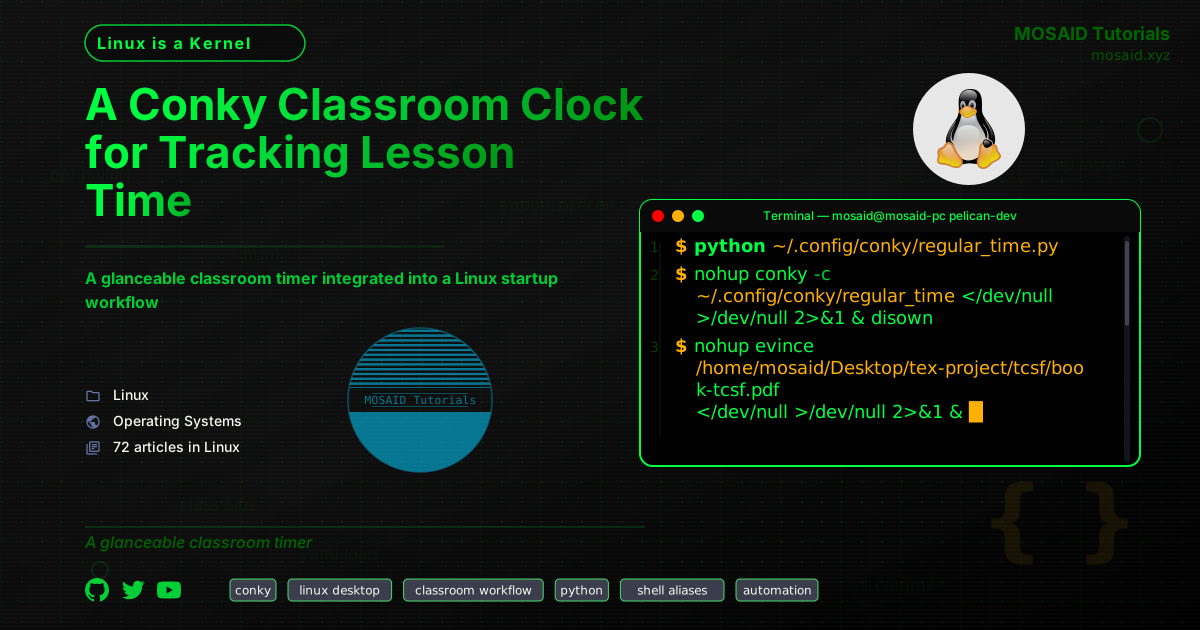
nohup conky -c ~/.config/conky/regular_time /dev/null 2>&1 & disown
This starts Conky without keeping a terminal occupied. Standard input is redirected from /dev/null, and both standard output and standard error are discarded.
The nohup, background execution and disown combination makes this convenient to launch from an interactive shell. Once started, Conky continues displaying the remaining time independently of the terminal.
More than a clock: small commands for the classroom
The Conky clock is only one part of my daily Linux workflow. I also rely on a few short shell aliases to open frequently used teaching resources.
For example, I have an alias named tcb:
tcb: aliased to nohup evince /home/mosaid/Desktop/tex-project/tcsf/book-tcsf.pdf /dev/null 2>&1 &
Running tcb opens my own mathematics book for the Tronc Commun Science classes in Evince.
This is particularly convenient during lessons. I do not have to navigate through directories, locate the PDF or manually launch the document viewer. The resource is available through a short command.
Both commands follow the same philosophy:
• Conky: makes the remaining lesson time continuously visible.
• tcb: opens the mathematics book I use for my classes.
Neither requires a complicated application or a dedicated graphical interface. They are small, predictable operations integrated into the environment I already use.
A desktop prepared for teaching
What makes these utilities useful is not their individual complexity, but how naturally they fit into my daily routine.
As soon as I start working, I can launch the clock and open the teaching material I need. During the lesson, the remaining time stays visible in the background. I can concentrate on explaining mathematical concepts and following the exercises instead of repeatedly checking the clock.
This is one of the advantages of a Linux desktop: small tools can be combined without introducing unnecessary infrastructure. Conky handles the persistent display, Python handles the calculation, and shell aliases provide convenient access to frequently used resources.
Possible improvements
The current implementation is intentionally small, but there are several directions in which it could evolve.
• External timetable configuration: the periods could eventually move into a separate configuration file, making timetable changes possible without editing Python code.
• Better process management: a startup entry or a dedicated user service could handle launching Conky and avoiding duplicate instances.
• Display enhancements: the output could include a different visual state for breaks, the beginning of a session or the end of the school day.
• Testing: the time calculation could be separated into a function that accepts an explicit time and weekday, allowing timetable behaviour to be tested without waiting for a particular moment.
None of these additions is necessary for the current purpose. The existing implementation does its job with very little code and very few dependencies.
Final thoughts
I use this Conky setup in my classroom as a Moroccan mathematics teacher. It gives me an immediate view of the time remaining in the current teaching period, while a few shell aliases provide quick access to the resources I use throughout the school day.
A useful desktop workflow does not have to be complicated. Sometimes a small script, a transparent Conky window and a couple of shell aliases are all it takes.
For me, this is what makes Linux particularly comfortable as a daily working environment: I can assemble small, independent tools around the way I actually work, rather than adapting my workflow to another application.
Recent Articles
A Conky Classroom Clock for Tracking Lesson Time
19 Nov 2026
A Tiny Bash Todo List That Greets Every Terminal
19 Nov 2026




Most Viewed Articles





The Ultimate Vim Setup (My 2024 vimrc ) : Essential Commands, Configurations, and Plugin Tips
Views: 1.49K
12 Apr 2024

Complete Tutorial: Creating Categories and Subcategories Using Pages in Pelican
Views: 1.15K
24 Jun 2025
Leave a comment