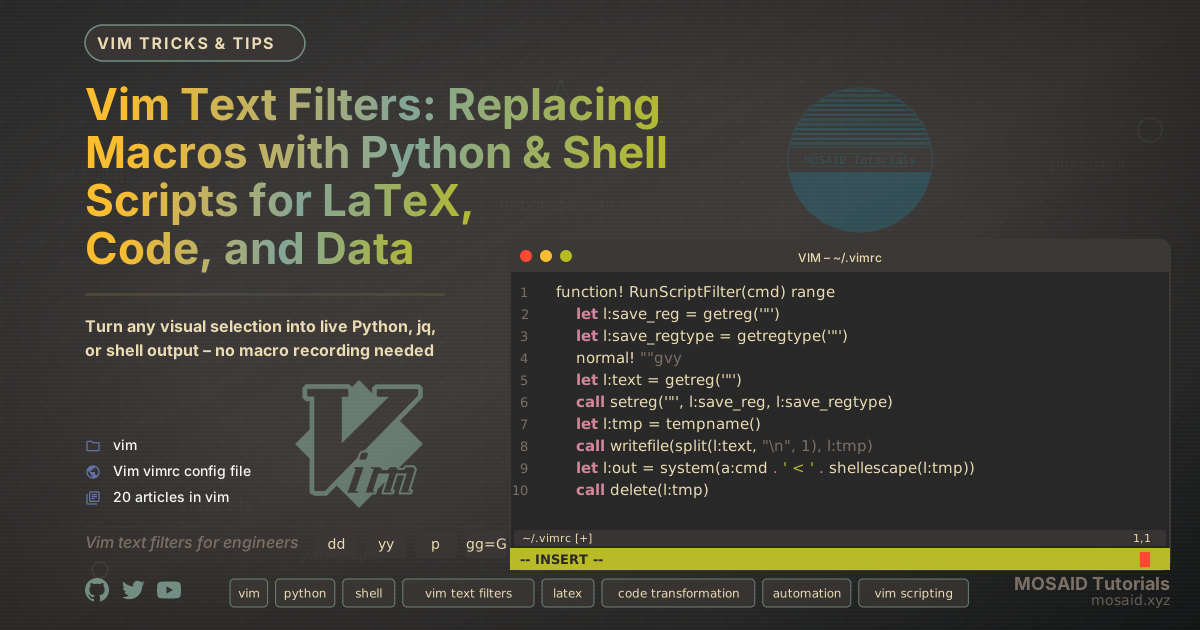
Vim Text Filters: Replacing Macros with Python & Shell Scripts for LaTeX, Code, and Data
Vim’s macro system is a classic power tool, but when you need real computation—parsing JSON, evaluating maths, formatting data—macros quickly hit their limits. Instead of recording a sequence of keystrokes, I use external scripts as Vim text filters. This Vim Python workflow replaces a visual selection (or an entire buffer) with the output of any command-line tool, turning your editor into a programmable text transformation pipeline.
Why Use Python Scripts Instead of Vim Macros?
Vim macros are perfect for one‑off, linear edits, but they become fragile when you need:
- Arithmetic or symbolic math (e.g., evaluating LaTeX expressions)
- Structured data processing (JSON, CSV, HTML tables)
- External API calls
- Linting or formatting with dedicated tools
By piping text to a script and replacing it with the script’s output, you gain the full expressiveness of Python, jq, pandoc, or any Unix filter – all while staying in normal mode.
This Vim text filter approach is reusable, composable, and far easier to debug than a complex macro.
The Core Vim Text Filter Function
The foundation is a Vim function that yanks the current visual selection, sends it to a command via stdin, and overwrites the selection with the result.
Here is a refined, production‑ready version I use every day, designed to handle multi‑line selections safely and to report errors without losing your original text.
function! RunScriptFilter(cmd) range
    " Save the current register and selection type
    let l:save_reg = getreg('"')
    let l:save_regtype = getregtype('"')

    " Yank the visual selection
    normal! ""gvy
    let l:text = getreg('"')

    " Restore the register immediately
    call setreg('"', l:save_reg, l:save_regtype)

    " Write the text to a temporary file to avoid shell escaping problems
    let l:tmp = tempname()
    call writefile(split(l:text, "\n", 1), l:tmp)
    let l:out = system(a:cmd . ' < ' . shellescape(l:tmp))
    call delete(l:tmp)

    " Show errors in a popup if the command failed
    if v:shell_error
        echohl ErrorMsg
        echo "Filter error:\n" . l:out
        echohl None
        return
    endif

    " Remove a trailing newline so we don't introduce blank lines
    let l:out = substitute(l:out, '\n\+$', '', '')

    " Replace the selection with the filtered output
    execute "normal! gv\"_c" . l:out
endfunction

" Example: format JSON with jq
xnoremap <silent> <leader>jq :<C-u>call RunScriptFilter('jq .')<CR>
With this generic filter, any command that reads from stdin becomes a Vim text filter.
No more escaping nightmares, and errors are shown without destroying your buffer.
Practical Vim Filter Examples for LaTeX, Code, and Data
1. Live Math Evaluation in LaTeX Documents
When writing technical articles, I often need to compute a value for a table or verify a formula. By selecting an expression and running a Vim Python filter, I get the result instantly. A small Python script handles the math:
# Save as ~/bin/vim-math-filter
python3 -c "from math import *; import sys; print(eval(sys.stdin.read()))"
Map it in Vim:
xnoremap <leader>m :call RunScriptFilter('vim-math-filter')<CR>
Now sqrt(2)*3.14 becomes 4.4403135525488 with a single keystroke.
2. Formatting CSVs into Markdown Tables
Data in CSV format can be transformed into a neatly aligned Markdown table using a quick Python script. This is a classic automate repetitive edits in Vim use case.
# ~/bin/csv2md-table
python3 << 'PYEOF'
import csv, sys
rows = list(csv.reader(sys.stdin))
if not rows: sys.exit(0)
widths = [max(len(str(row[i])) for row in rows) for i in range(len(rows[0]))]
for i, row in enumerate(rows):
    print('| ' + ' | '.join(f"{str(row[j]):{widths[j]}}" for j in range(len(row))) + ' |')
    if i == 0:
        print('|' + '|'.join(f"{'-'*(w+2)}" for w in widths) + '|')
PYEOF
Map it: xnoremap <leader>tb :call RunScriptFilter('csv2md-table')<CR>.
Select any CSV block, hit the map, and you get a perfectly formatted table – no manual alignment required.
3. JSON Prettification and Data Extraction
For quick JSON processing inside Vim, jq is unbeatable.
These mappings turn selections into pretty‑printed JSON, or extract a single field:
xnoremap <leader>jp :call RunScriptFilter('jq .')<CR>
xnoremap <leader>jn :call RunScriptFilter('jq -r .name')<CR>
xnoremap <leader>jc :call RunScriptFilter('jq -c .')<CR>
It’s an order of magnitude faster than trying to reformat JSON with a macro.
4. Linting and Auto‑formatting Code Blocks
Use your favourite linter as a Vim text filter.
For example, run black on a visually selected Python snippet inside a Markdown fenced block:
xnoremap <leader>bl :call RunScriptFilter('black -q -')<CR>
No need to leave Vim or copy‑paste – the formatted code replaces your selection instantly.
5. Whole‑Buffer Transformations with Pandoc
The same concept extends to the entire file. A slight modification of the function lets you pipe the whole buffer through any tool:
function! RunBufferFilter(cmd)
    let l:tmp = tempname()
    execute 'write !cat > ' . l:tmp
    let l:out = system(a:cmd . ' < ' . shellescape(l:tmp))
    call delete(l:tmp)
    if v:shell_error
        echohl ErrorMsg | echo l:out | echohl None
        return
    endif
    %delete
    put =l:out
    1delete _
endfunction

command! -nargs=1 FilterBuffer call RunBufferFilter(<q-args>)
Now you can use :FilterBuffer pandoc -f markdown -t plain to strip all Markdown formatting, or :FilterBuffer figlet for instant ASCII art.
Integrating the Filter into Your Vim and LaTeX Workflow
For those working heavily with Vim and LaTeX, these filters become a natural extension of your editing toolbelt. Examples from my own workflow include:
- Aligning LaTeX tables – pipe a selection through a Python script that aligns columns on
&. - Generating TikZ diagrams – select a numeric specification and use a filter to output the full TikZ code.
- Cleaning up BibTeX entries – run
bibtool --prettyon a selection to normalise formatting. - Spell‑checking a paragraph – use
textidote --check enas a filter and see suggestions inline.
The pattern is always the same: select, map, transform. This Vim automation mindset turns your editor into a composable toolchain.
Performance, Safety, and Edge Cases
•Temporary files: Always preferred over shellescape() for multi‑line text because they avoid escaping bugs.
•Error handling: Never replace the selection if the command fails – the original text remains intact.
•Undo friendliness: The replacement is a single change, so a quick u restores everything.
•Blocking concerns: The examples are synchronous; for heavy scripts (>1s), use Neovim’s job‑control or Vim’s job_start() to keep the UI responsive.
•Security: Avoid running arbitrary shell input – always use fixed commands with controlled arguments. Never interpolate user text directly into a command string.
Customise the Vim Text Filter for Your Own Workflow
The real power comes when you build a small library of filters that match your daily tasks.
I keep mine in ~/bin and in a dedicated Vim plugin file, with leader mappings grouped by topic:
<leader>m for math, <leader>t for tables, <leader>j for JSON.
Because the filter command is external, you can write it in Python, Ruby, Node.js, or even a compiled binary – Vim only cares about stdin and stdout.
This Vim + Python text transformation approach has replaced dozens of ad‑hoc macros in my setup and has become the backbone of how I edit code, documents, and data. Once you experience a single keystroke that computes a formula or formats a table, you’ll wonder why you ever recorded a macro for those tasks.
Recent Articles







Most Viewed Articles





The Ultimate Vim Setup (My 2024 vimrc ) : Essential Commands, Configurations, and Plugin Tips
Views: 1.46K
12 Apr 2024

Complete Tutorial: Creating Categories and Subcategories Using Pages in Pelican
Views: 1.11K
24 Jun 2025
Leave a comment