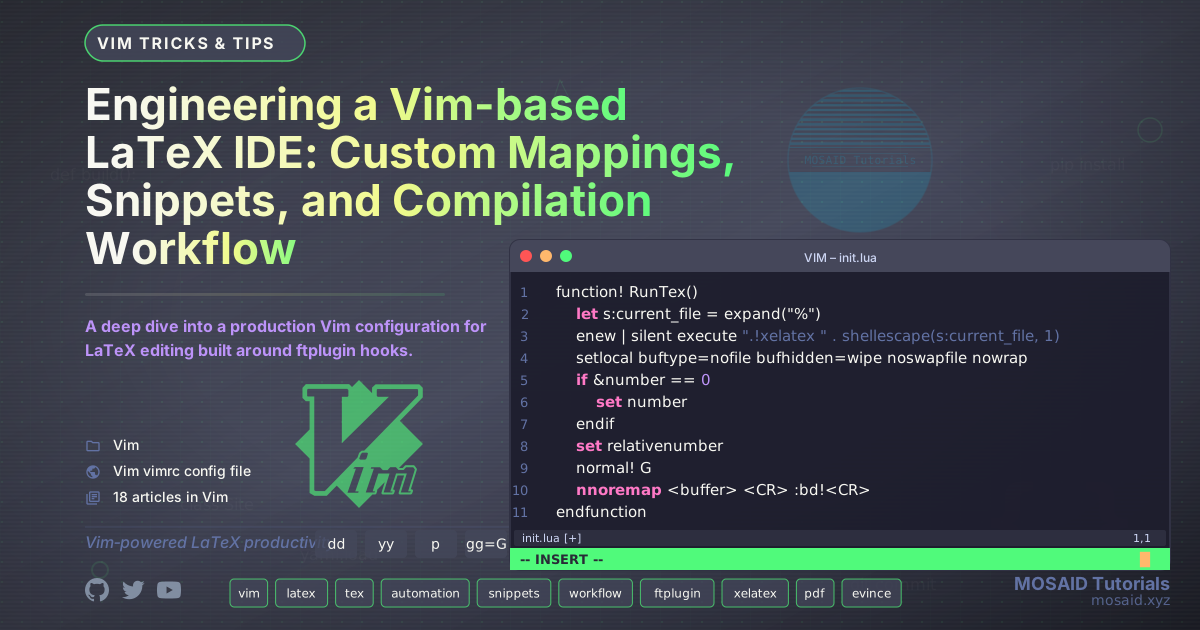
Engineering a Vim-based LaTeX IDE: Custom Mappings, Snippets, and Compilation Workflow
Problem Statement
LaTeX editing is powerful but repetitive. Every new document demands the same boilerplate: preamble setup, package inclusion, math shortcuts, and environment scaffolding. While dedicated LaTeX IDEs exist, they often feel slow, lack the composability of the terminal, and force a mouse-driven workflow. For engineers and power users who live in Vim, the ideal solution is to build a custom, deterministic editing environment that automates the boring parts without sacrificing control.
This article dissects a real-world Vim configuration for LaTeX editing, evolved over years of daily use. It lives at ~/.vim/after/ftplugin/tex.vim and leverages filetype-specific autocommands, a collection of snippet files, and custom functions that tie together compilation, PDF viewing, and even HTML export for static site generators like Pelican.
Architecture Overview
The system is a single Vim ftplugin file plus a directory of snippet templates. When a .tex file is opened, Vim automatically sources the ftplugin, which:
•Sets local buffer options (indentation, expansion).
•Defines compilation and viewer functions that capture xelatex output in a new buffer and open the resulting PDF in Evince.
•Creates insert-mode mappings that expand short keystrokes into full LaTeX commands or import snippet files.
•Provides visual-mode wrappers to quickly surround selected text with formatting commands like \textbf or inline math.
•Exports the current buffer to an HTML code block suitable for pasting into Pelican articles, bridging the gap between local authoring and static site publishing.
The snippets themselves are independent .tex files stored under ~/.vim/snippets/latex/ and inserted via :read commands bound to easy-to-type sequences like ;ds (exam template) or ;tcb (tcolorbox exercise).
Core Configuration
The ftplugin starts with the fundamentals:
autocmd FileType tex setlocal tabstop=2 shiftwidth=2 expandtab
LaTeX benefits from consistent two-space indentation. The expandtab setting ensures that all tabs are converted to spaces, which prevents formatting chaos when collaborating or sharing code.
Compilation Workflow
Running xelatex and Capturing Output
The RunTex() function embraces the Unix philosophy: it compiles the current .tex file with xelatex, discarding the need for a separate terminal window, and presents the output in a temporary buffer.
function! RunTex()
    let s:current_file = expand("%")
    enew | silent execute ".!xelatex " . shellescape(s:current_file, 1)
    setlocal buftype=nofile bufhidden=wipe noswapfile nowrap
    if &number == 0
        set number
    endif
    set relativenumber
    normal! G
    nnoremap <buffer> <CR> :bd!<CR>
endfunction
Key design decisions:
- Full log capture: Using
enewfollowed by.!xelatex ...reads the command output into a new buffer, preserving all warnings and errors. - Non-file buffer: The buffer is set to
nofileandnowrap, preventing accidental saves while keeping the log readable. - Quick dismissal: Pressing
<CR>in the output buffer deletes it with:bd!, returning you instantly to the source.
Mapping <leader>c invokes this function, turning compilation into a single, muscle-memorised keystroke.
Viewing the PDF
Once compiled, ViewTex() opens the corresponding PDF in Evince without blocking Vim:
function! ViewTex() abort
    let pdf = substitute(expand('%:p'), '\.tex$', '.pdf', '')
    silent! execute '!nohup evince ' . shellescape(pdf) . ' >/dev/null 2>&1 &'
    redraw!
endfunction
Using nohup ensures the viewer persists even if the terminal closes, and the silent redraw avoids screen flicker. Bound to <leader>o, it closes the edit‑compile‑view loop seamlessly.
Exporting LaTeX as HTML for Static Sites
The most unconventional part of this setup is the WrapBufferInHTMLTags() function. It yanks the entire buffer, escapes HTML entities, and wraps the result in <pre><code> blocks with a language class. The new buffer is then given a .html filename and filetype.
function! WrapBufferInHTMLTags()
execute 'normal! ggVGy'
let l:content = getreg('0')
let l:content = substitute(l:content, '&', '\&', 'g')
let l:content = substitute(l:content, '<', '\<', 'g')
let l:content = substitute(l:content, '>', '\>', 'g')
call setreg('0', l:content)
let l:current_filename = expand('%:t:r') . ".html"
execute 'enew'
setlocal filetype=html
execute 'file ' . l:current_filename
call setline(1, '<pre class="language-latex">')
call append(1, '<code class="language-latex">')
execute 'normal! Go'
execute 'normal! "0p'
call append(line('$'), '</code></pre>')
execute 'normal! gg'
endfunction
This function targets a specific pain point: publishing LaTeX source code in a Pelican-powered static site. Instead of manually escaping characters and adding HTML tags, a single mapping (<leader>w) produces a correctly formatted code block ready to be inserted into an body.html file. It is a perfect example of merging local tooling with an automated publishing pipeline.
Insert Mode Mappings: From Keystrokes to Content
A large portion of the ftplugin is devoted to insert-mode mappings that make typing LaTeX faster and more consistent.
Symbol Shortcuts and Structural Commands
Several mappings re-purpose keys that are rarely used in LaTeX but easily reachable:
•! → \ and § → !: swaps backslash and exclamation mark, since the backslash is the most frequent LaTeX character and ! is seldom needed.
•qq → \quad: inserts a quad space, used constantly in math environments.
•tt → ~\text{}~<++>: wraps text inside math mode with a tilde-protected space, placing the cursor ready to type the text and then jump to the placeholder.
•;hs, ;vs: horizontal and vertical space commands with a placeholder for the length.
•;bf, ;u: bold text and underline.
The <++> placeholder and the <C-j> mapping (both in insert and normal modes) implement a simple jump-to-next-placeholder mechanism. After inserting a template like \textbf{}, the cursor lands inside the braces; pressing <C-j> deletes the placeholder and moves to the next edit point, keeping hands on the home row.
Snippet Insertion System
The brunt of the automation comes from a collection of snippet files, each stored as a standalone .tex file inside ~/.vim/snippets/latex/. Insert mode mappings read these files directly into the buffer:
inoremap ;ds <ESC>:0r /home/mosaid/.vim/snippets/latex/ds<CR>
inoremap ;st <ESC>:0r /home/mosaid/.vim/snippets/latex/st<CR>
inoremap ;ar <ESC>:r /home/mosaid/.vim/snippets/latex/ar<CR>
The files are plain TeX, allowing direct editing without any special format. Below is a summary of the available snippets:
| Keystroke | File | Purpose |
|---|---|---|
| ;dd | d1 | Minimal article document skeleton (12pt, a4paper) |
| ;ds | ds | Full exam class with custom borders, TikZ stamps, and bilingual (French/Arabic) support |
| ;st | st | Standalone TikZ picture class for generating PNG graphics |
| ;ar | ar | Arabic language preamble (polyglossia, Amiri font) |
| ;gg | gg | Tight geometry: 1 cm margins on all sides |
| ;tcb | tcb | tcolorbox exercise environment with red frame, gray background, and counter |
| ;mt | mtab | Math-mode tabular environment for alignments |
| ;li | li | Custom tight enumerate list (compact spacing) |
| ;ti | tight | Enumitem key that makes any list tight |
| — | enum | Standard enumerate wrapper (no default mapping; users can add their own) |
Each snippet is a complete, self-contained piece of LaTeX that can be inserted either at the top of the file (:0r) or at the cursor (:r). The exam template (ds) alone is over 6 kB and includes a custom \stamp, \luck, and \borders system—showcasing how deeply tailored these templates can become.
Additional inline mappings complement the snippets:
•;mm: inserts \usepackage{amsmath, amsfonts, amssymb, amsthm} in one go.
•;ig: \includegraphics[width=<++>cm]{<++>} with placeholders.
•;bm: defines a \bottommsg macro used in certain document styles.
All of these shortcuts follow a consistent pattern: they reduce multi-step actions to a short, memorable sequence, often using the semicolon as a namespace leader to avoid conflicts with normal typing.
Visual Mode Wrapping: Metaprogramming Text
Visual mode mappings allow applying formatting to existing text without manual cursor navigation:
•<leader>$: surrounds selected text with ~$...$~, converting a region to inline math.
•<leader>u, <leader>b, <leader>i: underline, boldface, italic.
•<leader>cc: wraps text in \textcolor{}{...}, prompting for the colour.
•1, 2, 3, 4, 5: a series of single-key visual mappings for \bm{\textcolor{}{...}}, \bbox, \rbox, \obox, and inline math respectively.
•6, 9: convert \[...\] and \(...\) delimiters to the Vim author’s preferred ~$...$~ syntax, using a clever search-and-replace on the visual selection.
These mappings treat the document like a programmable structure, allowing restructuring and enhancement without ever leaving the editor or reaching for the mouse.
Tradeoffs and Limitations
Every engineering decision involves tradeoffs. This setup is no exception:
•Hard-coded paths: Snippet file paths are absolute (/home/mosaid/.vim/snippets/latex/). This works well on a single machine but breaks portability. A more robust solution would use environment variables or Vim’s ~/.vim relative paths (e.g., :r ~/.vim/snippets/latex/ds).
•Synchronous compilation: RunTex() runs xelatex synchronously, freezing Vim during compilation—fine for small documents, noticeable on 50+ page manuscripts. Integrating an async job via job_start() or :terminal would modernise it.
•Tight coupling to Evince: The viewer function assumes Evince is installed. While easily swapped, it’s not platform-agnostic.
•Snippet maintenance: Keeping the snippet library consistent and up-to-date is a manual process. A snippet engine like UltiSnips could provide more flexibility (placeholders, transforms), but the current approach is deliberately simple and transparent—just files on disk.
•Key conflict potential: Mappings like 1 in visual mode shadow Vim’s default behaviour. This is intentional; the author has internalised these overrides, but they may confuse new adopters.
Workflow Integration
This ftplugin does not exist in isolation. It is part of a larger pipeline that often includes:
- A Makefile or
latexmkcontinuous build script for multi-file projects. - A Pelican static site generator: the
WrapBufferInHTMLTags()function directly feeds the blogging engine with syntax-highlighted LaTeX code blocks. - A Git repository that versions both the ftplugin and the snippet files, ensuring reproducibility across machines.
- Terminal multiplexers (tmux) or modern terminal emulators that allow a side-by-side layout: Vim on the left, Evince on the right, and a compilation watcher in a third pane.
The system shines when you treat your LaTeX authoring as a software project: deterministic, automated, and continuously compiled.
Future Improvements
The current setup has evolved organically. For a more polished, distributable version, several enhancements are worth considering:
•Async compilation: Replace RunTex() with Vim’s job_start() and populate a quickfix list from the log, enabling :copen navigation.
•Portable snippet paths: Use expand('~/.vim/snippets/latex') instead of hard-coded /home/mosaid.
•UltiSnips or LuaSnip bridging: Keep the file‑based repository but generate snippet definitions dynamically, gaining visual placeholders and tab‑stops without abandoning the file system.
•LSP integration: Combine this custom tooling with a LaTeX language server (e.g., TexLab) for diagnostics, references, and hover information.
•Theme-aware PDF rendering: Adapt the ViewTex() function to work with other viewers (Zathura, Okular) or even inline PDF previews in modern Vim terminals.
Final Thoughts
This Vim configuration is a testament to the power of incremental customisation. What began as a few insert-mode shortcuts grew into a full-blown LaTeX editing environment that eliminates boilerplate, reduces cognitive load, and bridges the gap between document authoring and web publishing. It does not attempt to replace dedicated LaTeX IDEs; instead, it layers deterministic automation on top of an editor that the user already trusts.
The approach is reproducible, composable, and deeply personal—exactly what makes Vim a lasting tool for engineers. If you also live in Vim and write LaTeX, consider adopting (and adapting) these patterns to match your own workflow. The entire configuration is just a single ftplugin file and a folder of snippets—easy to version, easy to tweak, and easy to forget about once muscle memory takes over.
Recent Articles





Most Viewed Articles





The Ultimate Vim Setup (My 2024 vimrc ) : Essential Commands, Configurations, and Plugin Tips
Views: 1.46K
12 Apr 2024

Complete Tutorial: Creating Categories and Subcategories Using Pages in Pelican
Views: 1.11K
24 Jun 2025
Leave a comment