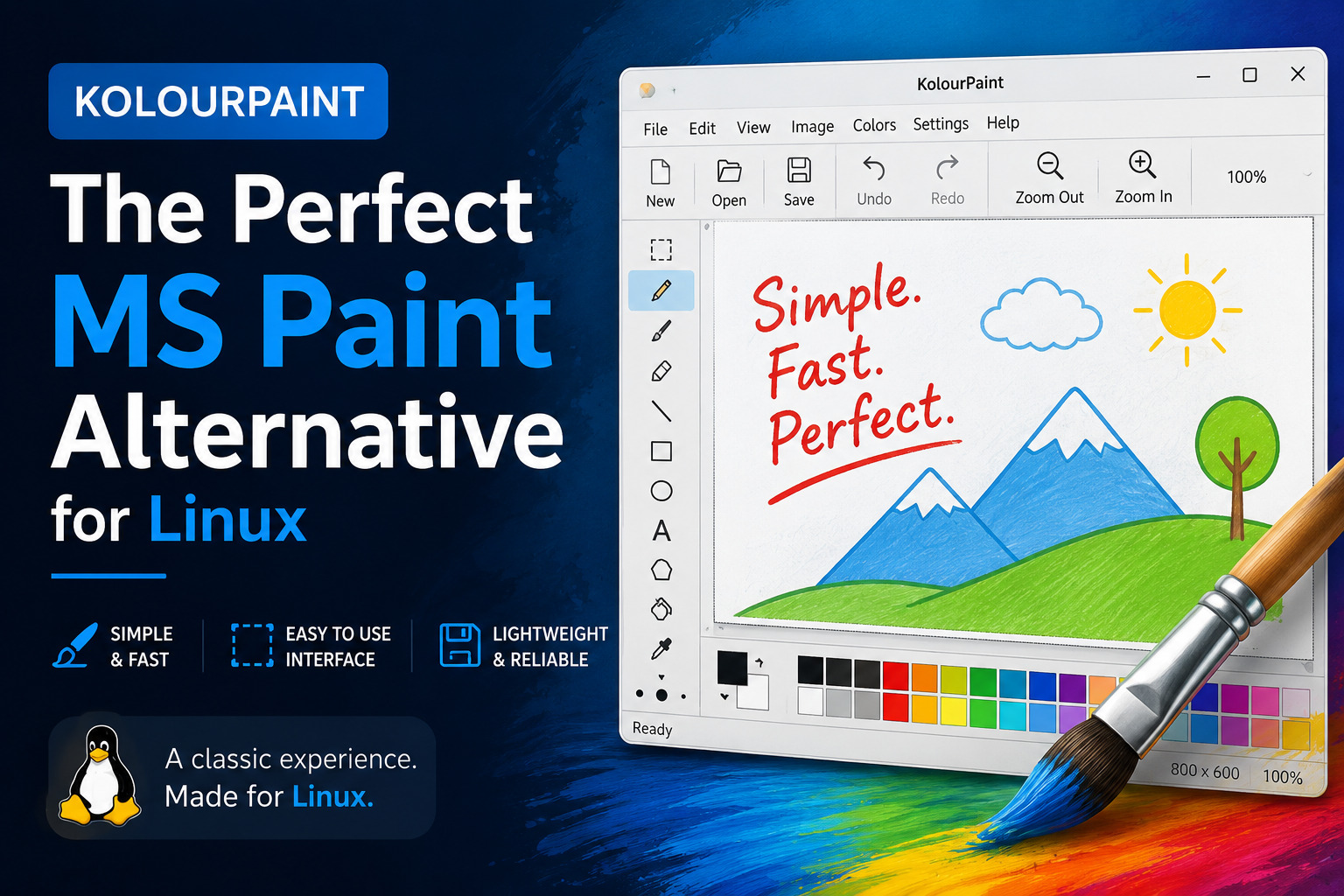
KolourPaint: The MS Paint Replacement I Finally Found After 20 Years of Linux
I’ve been using Linux as my daily driver for almost 20 years, and I haven’t touched Windows for over 15. Despite that, one tiny thing kept nagging me: the absence of a truly simple, drop‑in replacement for Microsoft Paint. When you need to crop a screenshot, add an arrow, or scribble a quick annotation, you don’t want to launch a behemoth like GIMP. You want something that opens instantly, lets you make the edit, and gets out of your way.
For years I tried to fill the void. GIMP is an amazing piece of software, but it’s a sledgehammer when all you need is a thumbtack. Pinta came close, but it always felt a little “off” – minor UI glitches and a dependency stack that sometimes broke. MyPaint, drawing tablets, raw pixel editors – none of them replicated the immediacy of MS Paint. Then, by accident, I stumbled across KolourPaint.
Discovery and First Impressions
I was scanning a forum thread about lightweight KDE applications when someone mentioned KolourPaint. I installed it with zero expectations and found myself grinning within 30 seconds. The layout, the tool palette, the default behaviour – it was as if MS Paint had been ported natively to Linux, with subtle improvements. No bloated menus, no confusing layer system, just a canvas and a set of tools that work exactly how you remember.
KolourPaint is part of the KDE ecosystem, but it runs perfectly on any desktop environment. It respects the Unix philosophy: do one thing (simple image editing) and do it well. The startup time is virtually instant, the memory footprint is negligible, and it integrates with your file manager as you’d expect.
Feature Comparison: MS Paint vs. KolourPaint
| Feature | MS Paint (Classic) | KolourPaint |
|---|---|---|
| Startup speed | Instant | Instant |
| Basic drawing tools | Yes | Yes, with additional shapes |
| Text tool | Limited | Rich text support, antialiasing |
| Transparency handling | No | Yes (alpha channel) |
| Colour palette | Fixed | Configurable, with colour picker |
| Format support | BMP, PNG, JPEG, GIF | BMP, PNG, JPEG, GIF, TIFF, ICO, WebP, and more |
| Undo/Redo | Limited | Unlimited history |
| Keyboard shortcuts | Basic | Extensive, customisable |
The feature set is familiar enough to be comfortable, yet modern enough to handle real-world tasks. I never have to think about “how do I do X?” because the answer is always the same as it was in MS Paint – it just works.
Daily Workflow Integration
As a developer and technical writer, I constantly manipulate screenshots. A typical flow looks like this:
•Capture: Use Spectacle (or scrot) to grab a region.
•Annotate: Open the screenshot directly in KolourPaint with one click.
•Add: Arrows, rectangles, text, or highlights using the toolbox.
•Export: Save as optimised PNG and drop into my documentation.
This entire pipeline takes less than 30 seconds because KolourPaint introduces zero friction. The ability to set a default save format (I always use PNG) means I never see a format dialog. The colour picker remembers my last used colours, so consistent branding is trivial.
Why Lightweight Tools Matter
Power users often build complex toolchains, but the weak link is almost always the “tiny edit” step. When a simple crop or annotation requires opening a 500 MB application, you’re pulled out of your flow. Over a day, those context switches add up to hours of lost productivity. KolourPaint solves this by being intentionally minimal.
It doesn’t try to be a photo editor, a painting simulator, or a design suite. It’s a straight‑to‑the‑point editing surface for raster images. That focus is exactly why it succeeds where GIMP, Pinta, and others fail for quick tasks.
Installation
KolourPaint is available in the repositories of virtually every major distribution. Installing it is a single command:
sudo apt install kolourpaint        # Debian / Ubuntu / Mint
sudo dnf install kolourpaint        # Fedora / RHEL
sudo pacman -S kolourpaint          # Arch Linux / Manjaro
No additional configuration is required. Once installed, it appears in your application launcher and can be associated with all common image formats.
Tradeoffs
No tool is perfect. KolourPaint’s strength—its simplicity—is also its limitation. It won’t replace advanced editors for compositing, colour grading, or professional graphic design. If you need non‑destructive layers or CMYK colour space, look elsewhere. But for the 90 % of edits that consist of cropping, resizing, simple drawing, and annotation, it’s ideal.
Another tradeoff: it’s a KDE application, so it pulls in several KDE libraries if you’re on a pure GTK‑based system. The footprint is still negligible by modern standards, but worth knowing.
Final Thoughts
After two decades, I finally have the one tool that makes me forget MS Paint ever existed. KolourPaint respects my time, my muscle memory, and my workflow. It’s a testament to the fact that sometimes the best software isn’t the most feature‑rich; it’s the one that disappears and lets you do your work.
If you’ve ever missed the simplicity of MS Paint on Linux, do yourself a favour and install KolourPaint. You’ll wonder why you didn’t find it sooner.
Recent Articles


Most Viewed Articles



The Ultimate Vim Setup (My 2024 vimrc ) : Essential Commands, Configurations, and Plugin Tips
Views: 1.45K
12 Apr 2024
Complete Tutorial: Creating Categories and Subcategories Using Pages in Pelican
Views: 1.11K
24 Jun 2025
Leave a comment